Frontpage
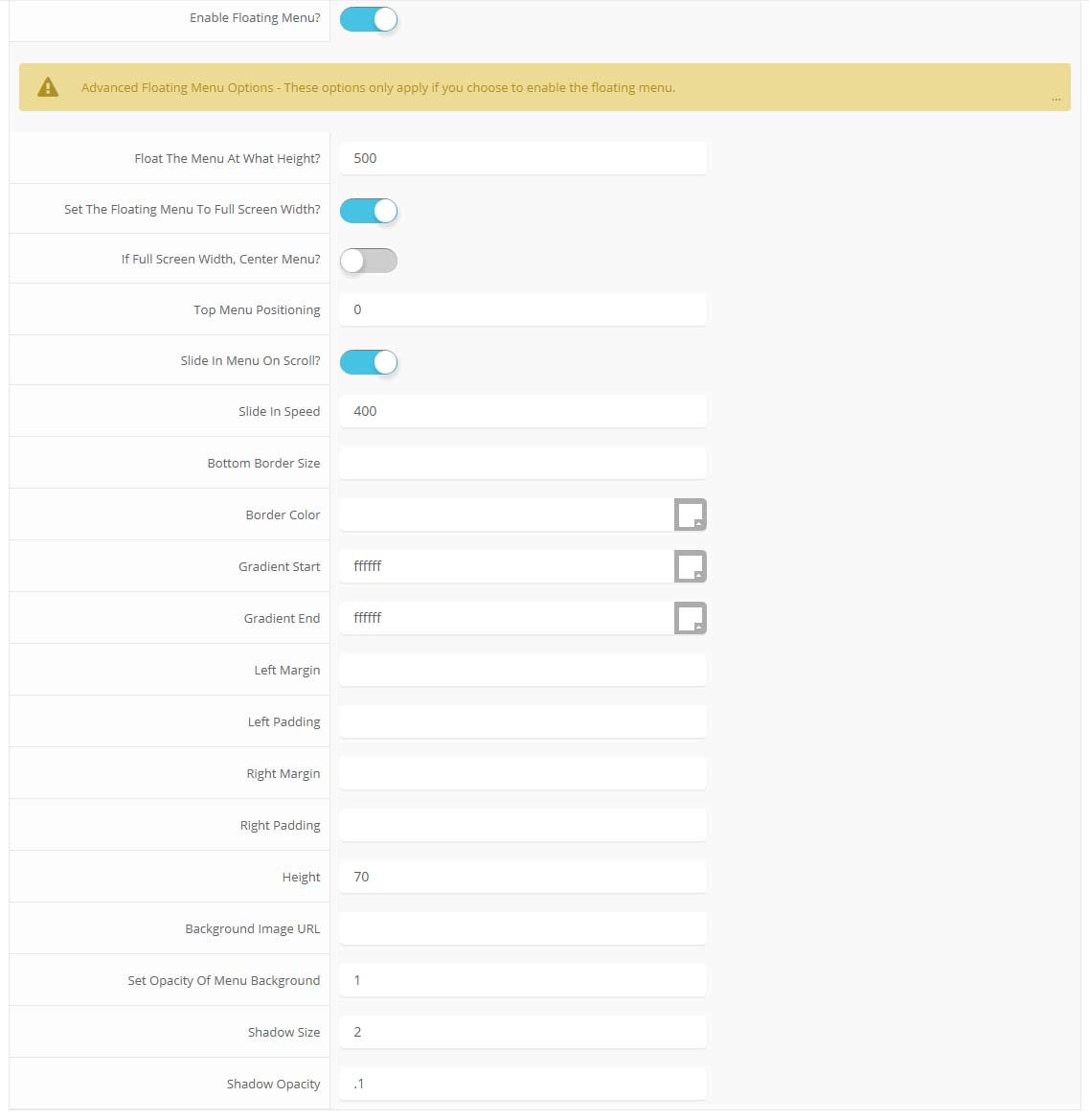
The floating menu feature is a great way for your users to easily navigate your website! The floating menu will show at the top of your browser once the screen reaches a certain point. You can determine the exact point at which this occurs via the template specific area of Vertex. NOTE: This is a Vertex addition and is not guaranteed to work with all Vertex Templates. Some custom CSS may need to be adjusted per template. This feature is not supported by IE7/8.
Features at a glance:
- Set a background image to the menu, gradient or solid color
- Set to snap or smooth scroll in
- Determine at which point as you scroll down your page that the menu drops in
- and many more features, just check out the screenshot below
Admin area of the floating menu:
All content and images shown on this site is for demo, presentation purposes only. This site is intended to exemplify a live website and does not make any claim of any kind to the validity of non-Shape5 content, images or posts published. Stock photography and icons are often purchased from shutterstock.com for the demonstration purposes of Shape5.com only, and are not included with this template or any of our downloads. Occasionally open source images are used, some of which are allowed for re-distribution as per their individual licenses, eg: unsplash.com. Images that are not included in our downloads are not licensed for re-distribution and therefore not included, you may not use these items for your own use without first purchasing them from their copyright owner. Links will be provided for some of these items if you wish to purchase them from their copyright owners or download them from their sources. Image(s) or Footage (as applicable from Shutterstock), used under license from Shutterstock.com.
All modules are fully collapsible
What exactly is a collapsing module? It's quite simple, whenever a module is not published to a postion that position does not appear on the frontend of the template. Consider the example below:
This particular row has 6 module positions available to publish to. Let's say you only want to publish to 4 of these positions. The template will automatically collapse the modules you do not want to use and adjust the size of the modules accordingly:

If no modules are published to the row the entire row itself will not show. The best feature of this is every module can be published to its own unique pages so the layout of your site can change on every page!
Infinite Layouts
Because there are so many module positions available in so many different areas, the number of layouts you can create are limitless! For example, if you would like to show your main content area on the right side of your site but still have a column of modules, simply published your modules to the right or right_inset positions or both. The same would be true for the opposite, if you want a column on the left simply publish modules to left or left_inset. Of course you can always choose to not have a column at all. Remember, any module not published to will automatically collapse and the remaining area will automatically adjust. There is no need to choose a pre-defined layout for your entire site, simply use the power of collpasing module positions and take advantage of the numerous amount of module positions to create any layout you can dream of! Be sure to checkout the layout of modules below.Dozens of Modules
Below is a complete list of all the module positions available for this template.
How to install and setup module styles:
- 01 Download any module you wish to publish to your site.
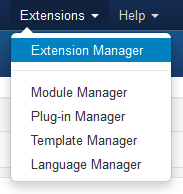
- 02In the backend of Joomla navigate to the menu item Extensions/Install Uninstall
- 03Browse for the module's install file and click Upload File & Install.
- 04 Once the module has be installed navigate to the menu item Extensions/Module Manager (same menu as above)
- 05Find the Module just installed and click on it's title.
- 06 Change any parameters that you wish and be sure to set it to published and publish it to your desired module position.
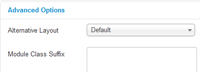
- 07To apply a module style simply fill in the module class suffix field with any of this template's included module styles. This parameter setting is found under Module Parameters on the right side of the screen.
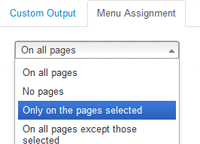
- 08Assign what pages you would like the module to appear on and finally click Save.